Introduction to Claude Code Hooks
Claude Code Hooks is an event-driven automation mechanism that allows you to automatically execute specified shell commands before or after Claude Code performs certain operations.
When using Claude Code, you often want to complete a custom task after a specific operation finishes, before continuing with subsequent tasks.
While you can achieve this with well-crafted prompts before starting a session, sometimes we want these custom tasks to be rigorous and not rely on the LLM to make decisions. This is where Claude Code Hooks comes in handy.
Common Use Cases for Claude Code Hooks:
| Feature | Description |
|---|---|
| Notifications | Customize alerts when Claude Code is waiting for your input or approval |
| Auto-formatting | Automatically run prettier after each file edit |
| Logging | Track and record all executed commands for auditing or debugging |
| Auto-feedback | Automatically provide guidance when Claude Code generates code that doesn’t comply with library standards |
| Custom Permissions | Block modifications to production files or sensitive directories |
Claude Code Hooks events are categorized into PreToolUse, PostToolUse, Notification, Stop, SubagentStop, and more.
Users can configure which scenarios should trigger hooks.
For example:
In the PostToolUse scenario, when Claude Code executes Write, Edit, or MultiEdit operations, the corresponding hooks will be triggered.
1 | { |
How to Send Telegram Notifications with Claude Code Hooks
Let’s create a simple example where Claude Code automatically sends a Telegram notification when it’s waiting for your input.
First, write a simple shell script that sends Telegram notifications.
1 |
|
Next, configure hooks in Claude Code. After entering the Claude Code CLI interface, use /hooks to enter the hooks configuration screen, which looks like this: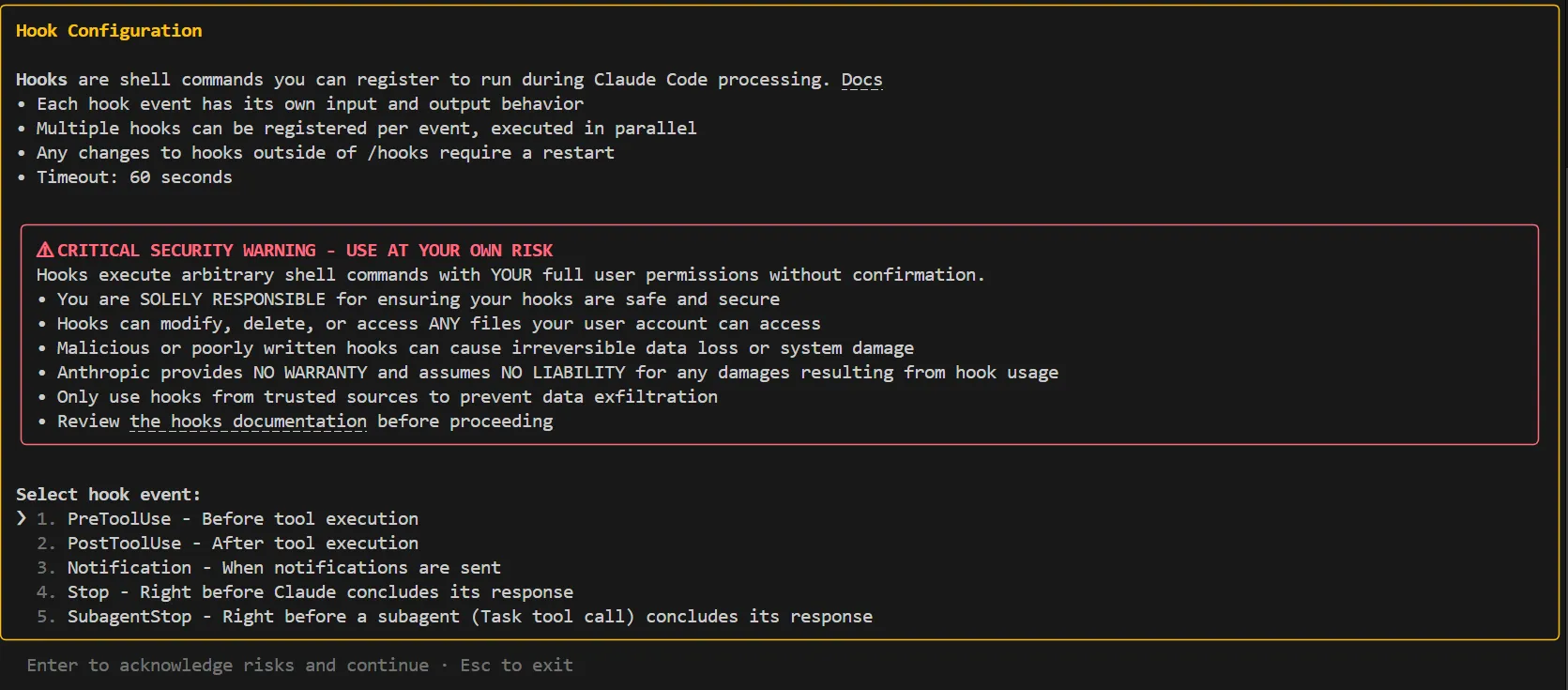
Go to the Notification field and click “Add new hook”, enter the path to the shell script we just wrote, and also adjust whether this hook is a project setting or a global user setting.
At this point, your settings.json will show your hooks configuration as follows:
1 | { |
Now you can start testing. I often switch to other windows while Claude Code is running.
I frequently encounter situations where it’s waiting for my approval, but I don’t notice. This feature helps remind me.
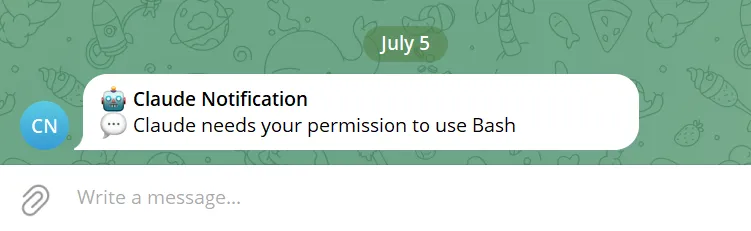
Here’s an example where I ask Claude Code to execute a Bash command to create a folder:
When it triggers a Notification, it automatically sends me a Telegram notification.
Never forget that you asked Claude Code to do something again! 😂
Conclusion
When configuring Claude Code Hooks, you can also use Hook Output to determine the logic for successful and failed hook executions, using Exit Code or JSON Output.
Additionally, matchers can be configured for MCP tool usage scenarios, making it convenient to execute planned hooks when triggering specific MCP tools. By setting up comprehensive hooks, you can make Claude Code usage more rigorous and reduce the time spent checking for errors afterward.